

S7-PLCSIM V20 Update 2 is the latest version of Simatic S7 PLC Simulation software. It supports the latest firmware of the S7-1200/S7-1500/ET-200 product families. Download PLCSIM V20 Update 2 free on PLCAZ.
S7-PLCSIM V20 Update 2 Key Features
With simulated PLC instances in S7-PLCSIM V20 Update 2, you can use STEP 7 – TIA Portal V20 debugging tools, including the watch table, program status, online & diagnostics functions, and other tools. PLCSIM V20 Update 2 resolves the following issue:
- Simulating an S7-1200 G2 CPU when using a STEP 7 Basic license
- Simulating an S7-1200 CPU when using Windows Server 2019
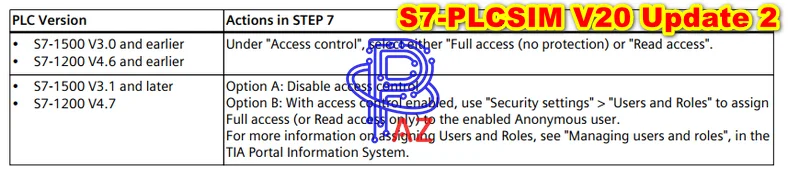
- Configuring read/write tag access for S7-PLCSIM V20 Upd2 based on PLC version
PLCSIM V20 Update 2 allows you to read and write PLC tags. Based on your PLC version, configure Full (read and write) or Read-only access as described in the table below:
- The instance will not power on after opening a saved workspace: In the following scenario, your simulated instance might not power on correctly when you try to reopen it from a previously saved workspace:
- You downloaded your STEP 7 project to an instance
- You set the instance to RUN mode
- The instance performed frequent file write operations to the virtual SD card
- You saved the workspace while the simulated instance was in RUN mode: To avoid this issue and prevent potential data loss, power off or set the S7-PLCSIM instance to STOP before saving the workspace.
- Downloading to a simulated PLC instance with “Protection of confidential PLC configuration data” selected in STEP 7: To use “Protection of confidential PLC configuration data” in a TIA Portal V20 project with your simulated PLC instance, select the check box and set the password for it in the STEP 7 project. Download “Hardware and software” to the simulated PLC instance.
Download S7-PLCSIM V20 Update 2 Full
- Source: Siemens Automation Software
- File name: PLCAZ.COM_S7-PLCSIM_v20_Upd2.ISO
- Software Type: PLC Simulation Software for Siemens S7 PLC
- File type: ISO
- File Size: 2.34 GB
- Version: v20.0.2 – Latest Version
- Windows Supported: Windows 10; Windows 11
- Languages: English/ German/ French/ Italian/ Spanish/ Chinese/ Korean/ Japanese
- Link download fast speed – S7-PLCSIM V20 Update 2
- The password to extract the file (If any) is “PLCAZ.COM”.
How To Install The Software
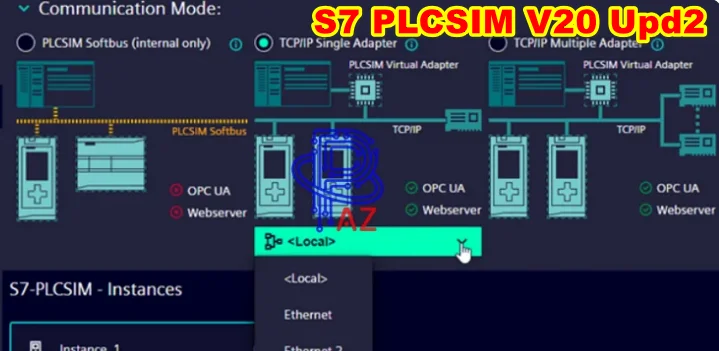
- Firstly, download the setup file from the link above. Note: On your PC, the S7-PLCSIM V20 must be installed. You can download from our blog – PLCSIM V20
- Secondly, after downloading the file, double-click on the file to mount it to the PC.
- Thirdly, open the folder. Then run the setup file “Start.exe” and follow the guide to install.
- Finally, open Simatic S7-PLCSIM V20 Update 2 and use the software
- Note: The updates 2 is cumulative and include all previous updates (PLCSIM V20 Update 1).